
Layouts in pictures
Every layout option, with the exact setting that produces it. For advice on which to choose, see Layouts & which to use.
Two settings shape how a bundle looks, and they work independently:
- Layout sets how the whole bundle is arranged on the page.
- Multiple items sets how a single item bought in several units is shown.
Both live at the top of the Bundle Items tab. Below is each option, the setting that produces it, and how it looks (shown with a real hoodie that has colours and sizes). For when to pick which, see Layouts & which to use.
Where you set these
When you edit a bundle, the controls sit at the top of the Bundle Items tab: pick the page Layout on the right, and Multiple items (how a repeated item is shown) on the left. Every option below is just one choice in these dropdowns.

Page layout
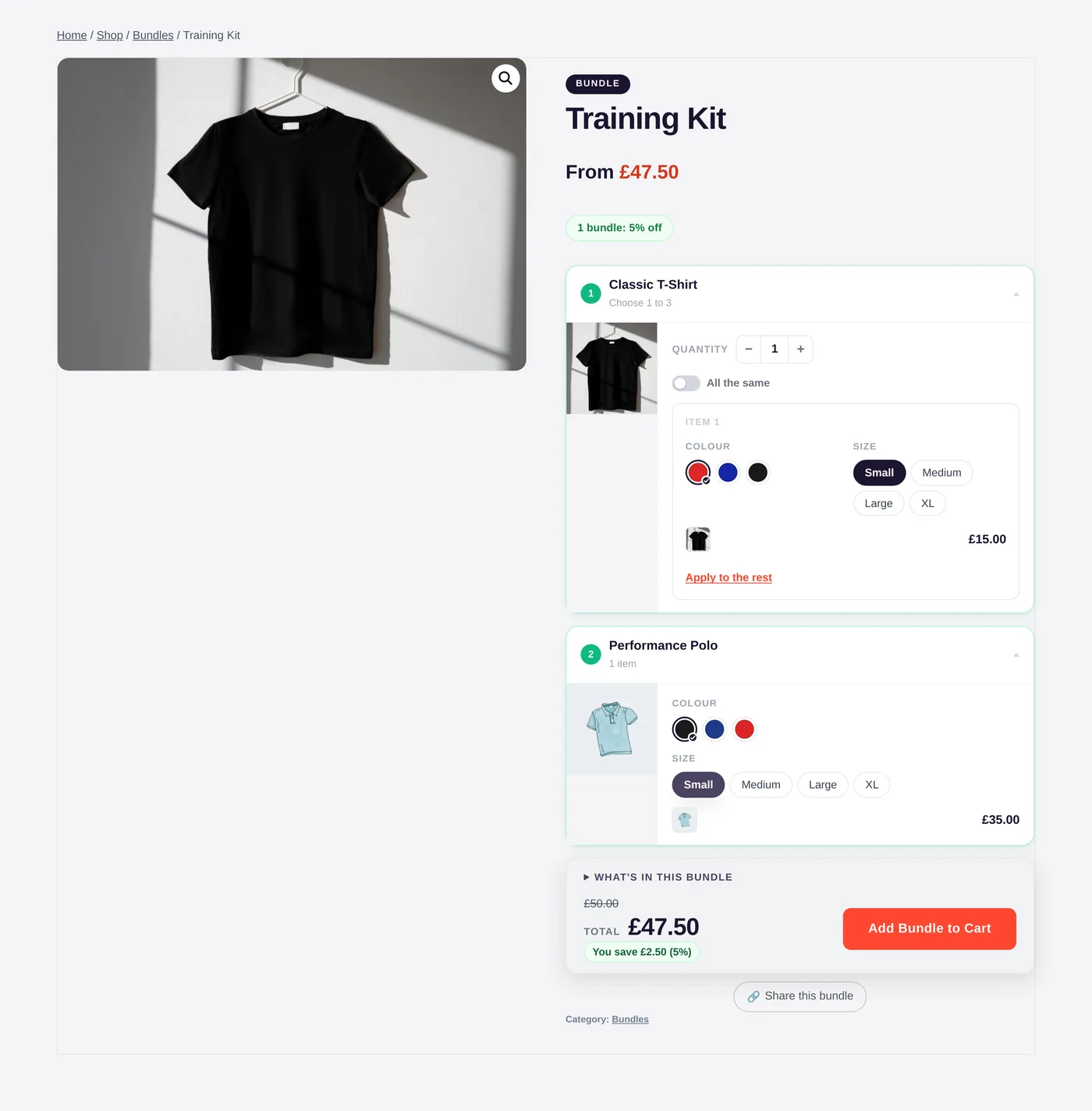
List
To get this: set Layout to List.
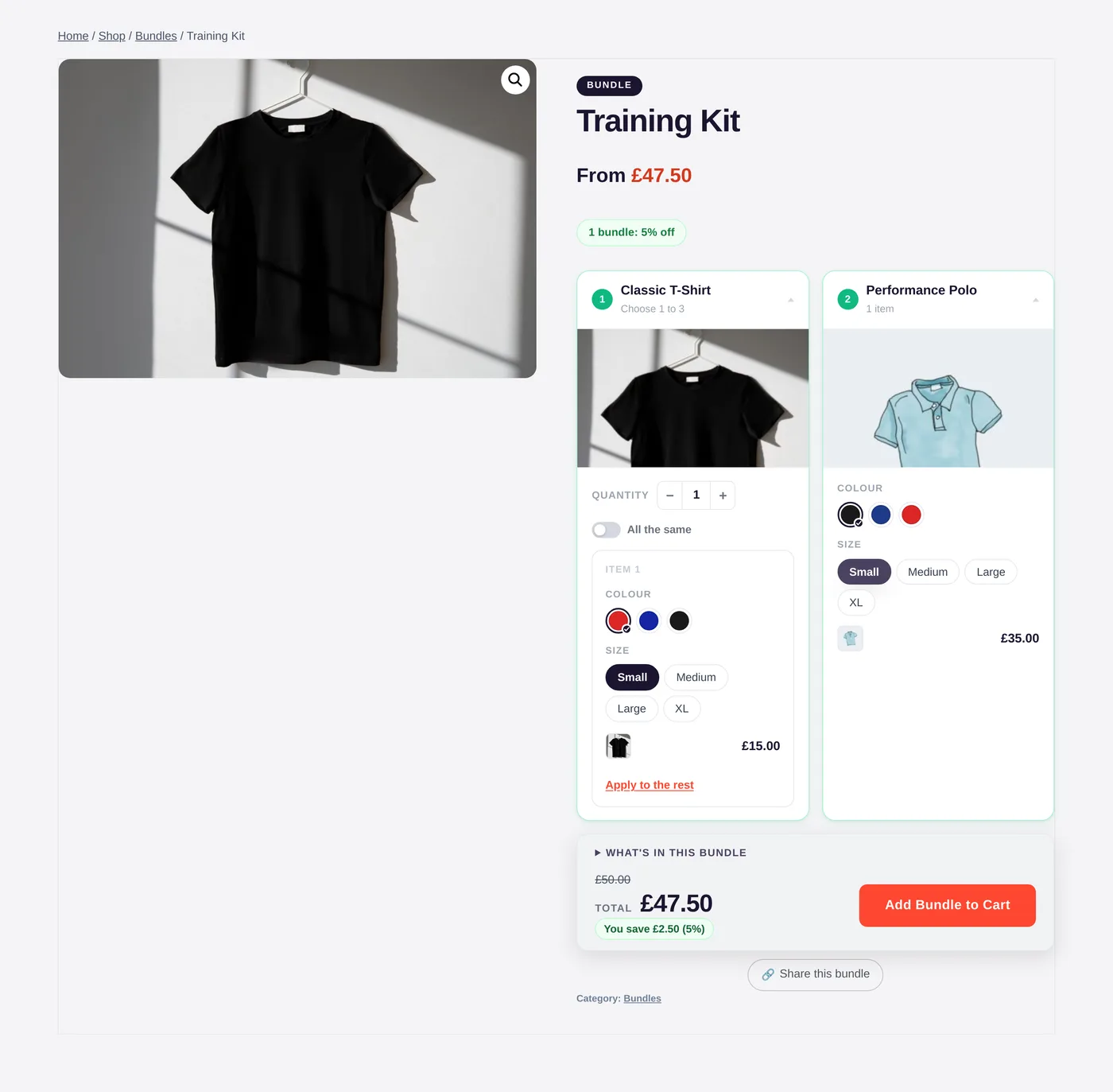
Grid
To get this: set Layout to Grid.
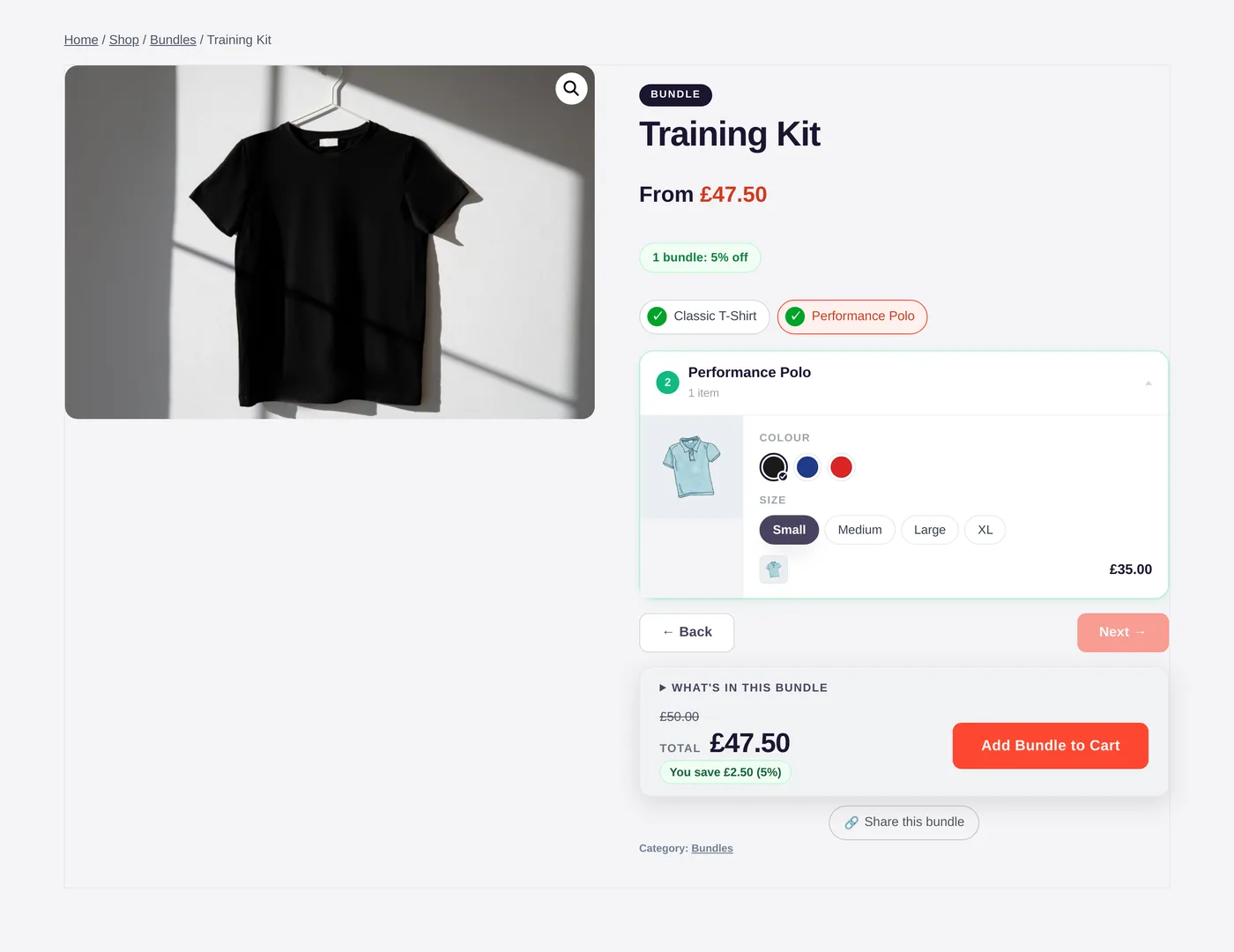
Step by step Pro
To get this: set Layout to Step by step.
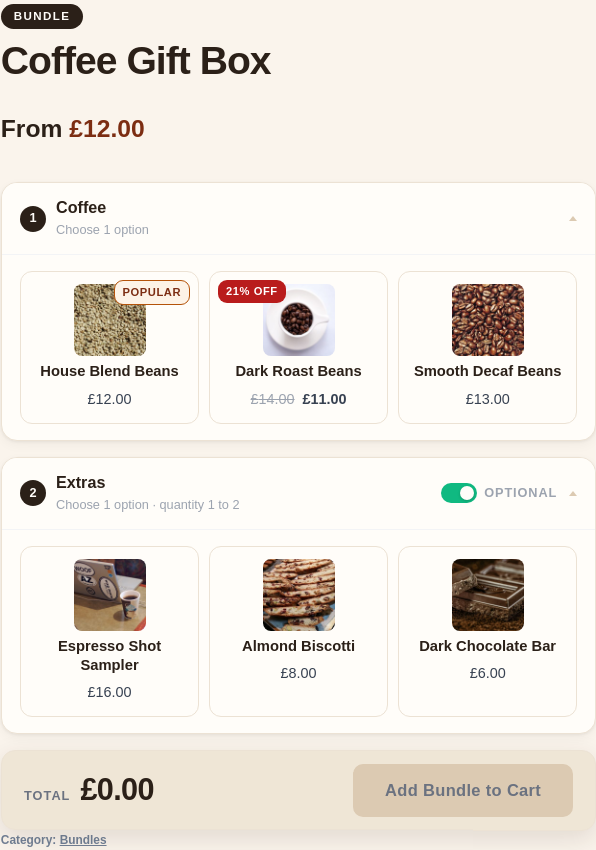
Configurator Pro
To get this: set Layout to Configurator.
How a multi-quantity item shows
When one item is bought in several units (a three-pack, say), Multiple items controls how those units appear. It only changes a variable product bought in quantity; simple and single-unit items always look the same.
Stacked
To get this: set Multiple items to Stacked.
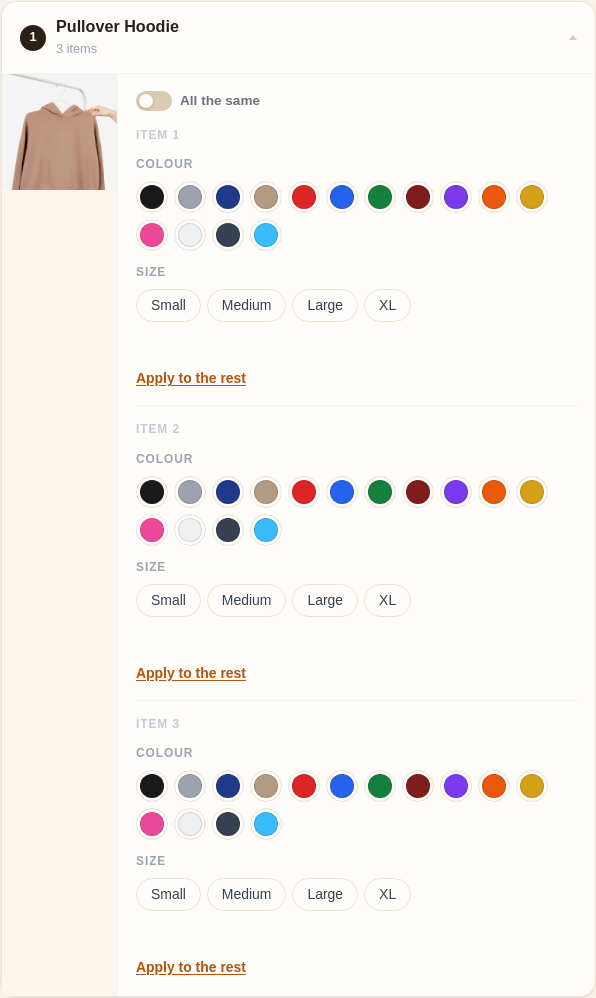
Compact cards
To get this: set Multiple items to Compact cards.
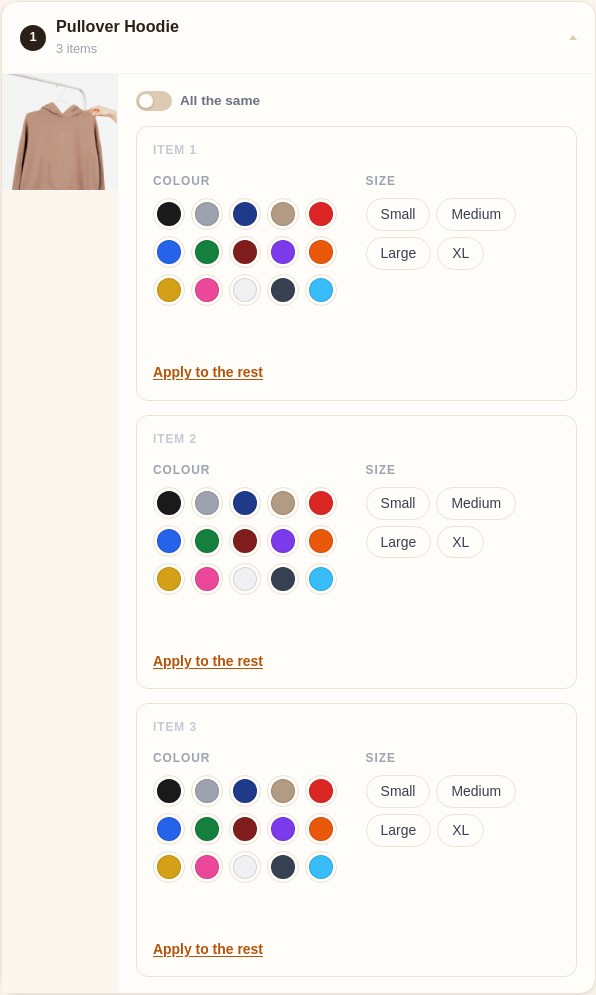
Table
To get this: set Multiple items to Table.
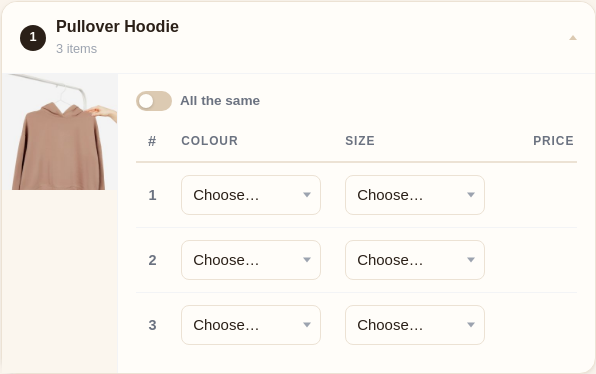
Quantity grid Pro
To get this: set Multiple items to Quantity grid.
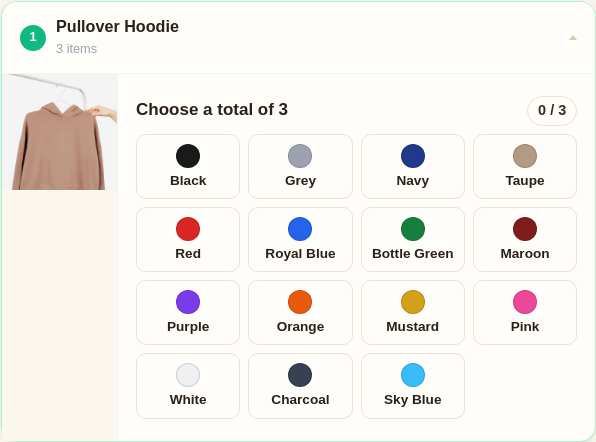
Different kinds of product
Every shot above uses a product you choose (a variable hoodie), which the customer configures. Two other cases are worth seeing:
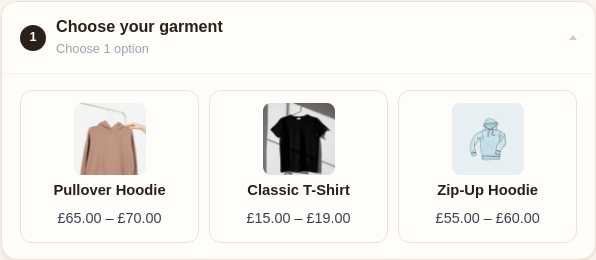
A choice slot Pro
To get this: add the item as a choice slot instead of a fixed product.
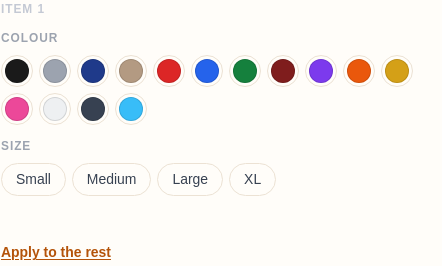
Colour swatches
To get this: give the colour attribute swatch colours, or let them fill in from the name.
Mix and match
Because the two settings are independent, you can combine them freely: a List page with a Quantity grid item, a Grid page with Compact cards, and so on. Pick the page layout for how the bundle reads as a whole, then the Multiple-items display for how a repeated item is filled in. Not sure which? The Layouts & which to use page has a quick recommendation table.
Still stuck? Email a human. The person who reads it is the person who builds the plugin.