
Bundle items & quantities
A bundle is a set of slots. Each slot is one product, with its own quantity and its own rules.
Adding a slot
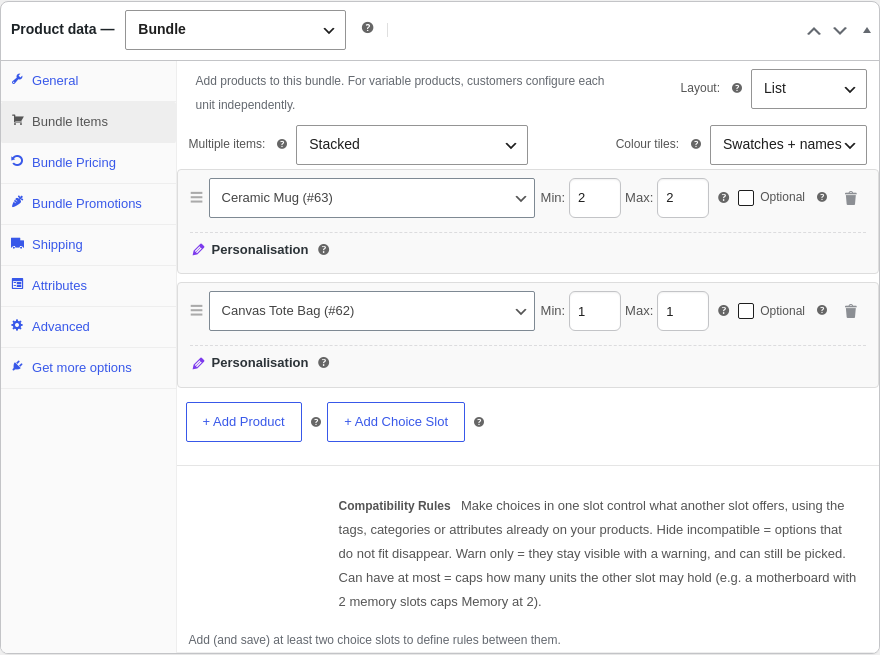
On the Bundle Items tab, click + Add Product, type at least two characters, and choose a product from the search results. Search matches product names, IDs and SKUs, so pasting a SKU from your stock sheet finds the product straight away. Simple and variable products are both supported, including virtual and downloadable ones. Repeat for each product in the pack.
Drag the handle on the left of a row to reorder slots. The order here is the order customers see on the product page. Each row shows its product with a thumbnail and a quantity chip; More options opens the row’s full settings, and Expand all / Collapse all folds the whole panel so a big bundle stays scannable.
Quantity: fixed or adjustable
Every slot has a Min and a Max quantity:
- Fixed quantity (Min equals Max): the customer always gets exactly that many. Min 2, Max 2 means two of this product, no choice.
- Adjustable (Min below Max): a plus and minus stepper appears, and the customer chooses how many within the range. Min 1, Max 3 lets them take one, two or three.
- No upper limit: leave Max empty for “this many or more” with no ceiling.
When a slot’s quantity is more than one and the product is variable, each unit is configured on its own, so a customer can pick a different colour or size for every unit. How those units are laid out (stacked cards, a table, or the size-run grid) is the Multiple items setting, covered in Layouts & which to use.
Optional items
Tick Optional on a slot to let the customer include or skip it. Skipped items drop out of the price and the order, and they are left out of the shop’s “From £X” figure so the headline price stays honest. See Optional items for the detail.
Restricting which variations are offered
For a variable product, you can narrow what the customer may choose. Each attribute gets one quiet line, “Colour · All 15 offered”; click Change, tick only the values this bundle sells, and the line reads “2 of 15 offered”. A searchable checklist appears for long lists, and Offer all puts everything back. The same lines appear for option sets on a simple product.
Restricting variations is per slot, so the same hoodie can be offered in different colours in two different bundles without changing the product itself.
How options are shown
Per item, you can show variation options as pill buttons (tap to select) or as a dropdown. Pills suit a handful of options; dropdowns suit long lists. Colour options can show as swatches instead of text.
Item and bundle images
- Hide an item’s image on its row if a slot reads better without a thumbnail.
- The bundle’s own Main image can be shown, hidden, or set to follow the customer’s chosen colour, so the main product photo updates as they configure.
Want customers to pick the product, not just the colour?
The slots above are ones where you, the shop owner, choose the product. To let the customer choose the product from a pool you define (a PC builder, a gift hamper, a ski package), use a choice slot Pro instead.
Still stuck? Email a human. The person who reads it is the person who builds the plugin.